antigravity-cloud-run
How I drive a cloud coding agent from my phone through the browser
tl;dr: I put Google’s Identity-Aware Proxy in front of a Cloud Run service running a coding agent in a web terminal. Now I open a URL on my phone, sign in with my Google account, and I’m talking to the agent.
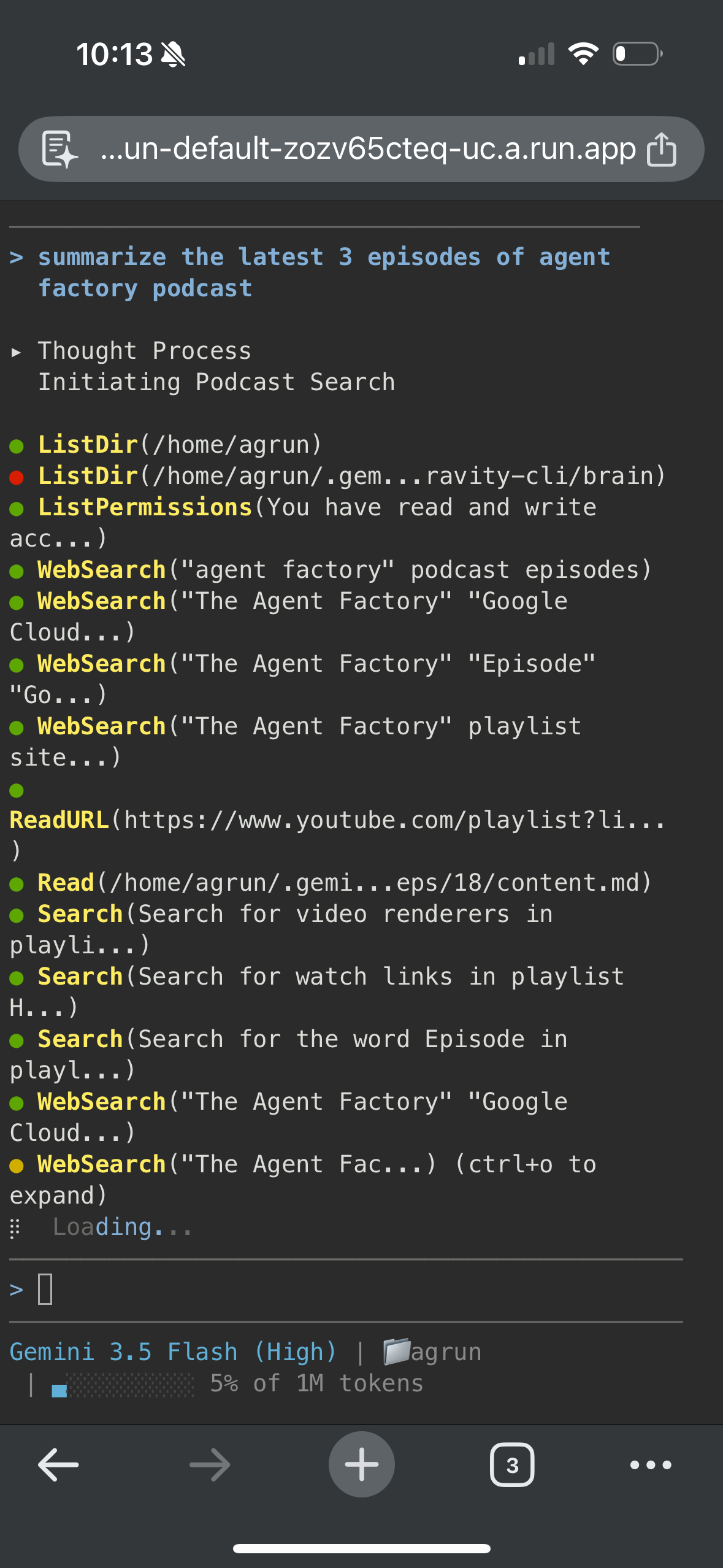
Source: github.com/ykdojo/antigravity-cloud-run
This builds on my containerized dev environments
setup: the agent runs with
--dangerously-skip-permissions inside a container on Cloud Run, reachable
through a web terminal. The missing piece was using it away from my laptop.
This particular setup was done for Antigravity CLI, but it should work for pretty much any other CLI coding agent.
Two ways to reach a session from a phone, and why I picked IAP
My sessions already join my Tailscale network, so the obvious route was the Tailscale app on the phone. It works, but there’s a catch: tailnet traffic bypasses Cloud Run’s front end entirely, so the autoscaler thinks the service is idle and reclaims the instance after about 15 minutes, mid-use. The only fix is pinning the instance with min-instances=1, which costs money around the clock whether I’m using it or not.
IAP flips that. Identity-Aware Proxy is Google Cloud’s managed sign-in gate:
you put it in front of a service, and only the Google accounts you allowlist
get through. You open the service’s regular run.app URL, sign in, and you’re
at the terminal. The terminal’s
WebSocket is a real ingress request, so opening the tab wakes the instance,
keeps it alive while you’re connected, and lets it scale back to zero when you
close the tab.
If you want the instance to never die, deploy with min-instances=1 and it never scales down to zero.
The stack, layer by layer
- IAP decides who gets in. Only the Google accounts you allowlisted can access it.
- ttyd turns the browser into a terminal. The agent is a TUI and the browser speaks HTTP/WebSocket; ttyd bridges the two.
- tmux keeps the session alive when the connection drops, and you can attach to the same session from multiple devices.
- agy does the work.
Setting it up
Enabling IAP on the service itself is three commands:
gcloud run services update SERVICE --region REGION --iap

gcloud run services add-iam-policy-binding SERVICE --region REGION \
  --member serviceAccount:service-PROJECT_NUMBER@gcp-sa-iap.iam.gserviceaccount.com \
  --role roles/run.invoker

gcloud beta iap web add-iam-policy-binding --resource-type=cloud-run \
  --service SERVICE --region REGION \
  --member user:YOU@gmail.com --role roles/iap.httpsResourceAccessor
If your project lives in a Google Cloud organization, you may be done. Mine doesn’t, so I needed to take a long detour. In case you need to go through the same thing, here is what I went through.
The 502 detour: no organization, no automatic OAuth client
After enabling IAP, every request returned a 502 with this body:
Empty Google Account OAuth client ID(s)/secret(s).
The reason: IAP’s Google-managed OAuth client only authenticates users inside your organization. A personal project has no organization, so there is no client at all, which is why it says “empty”. External users need a custom OAuth client handed to IAP. Four steps, mostly console clicks:
-
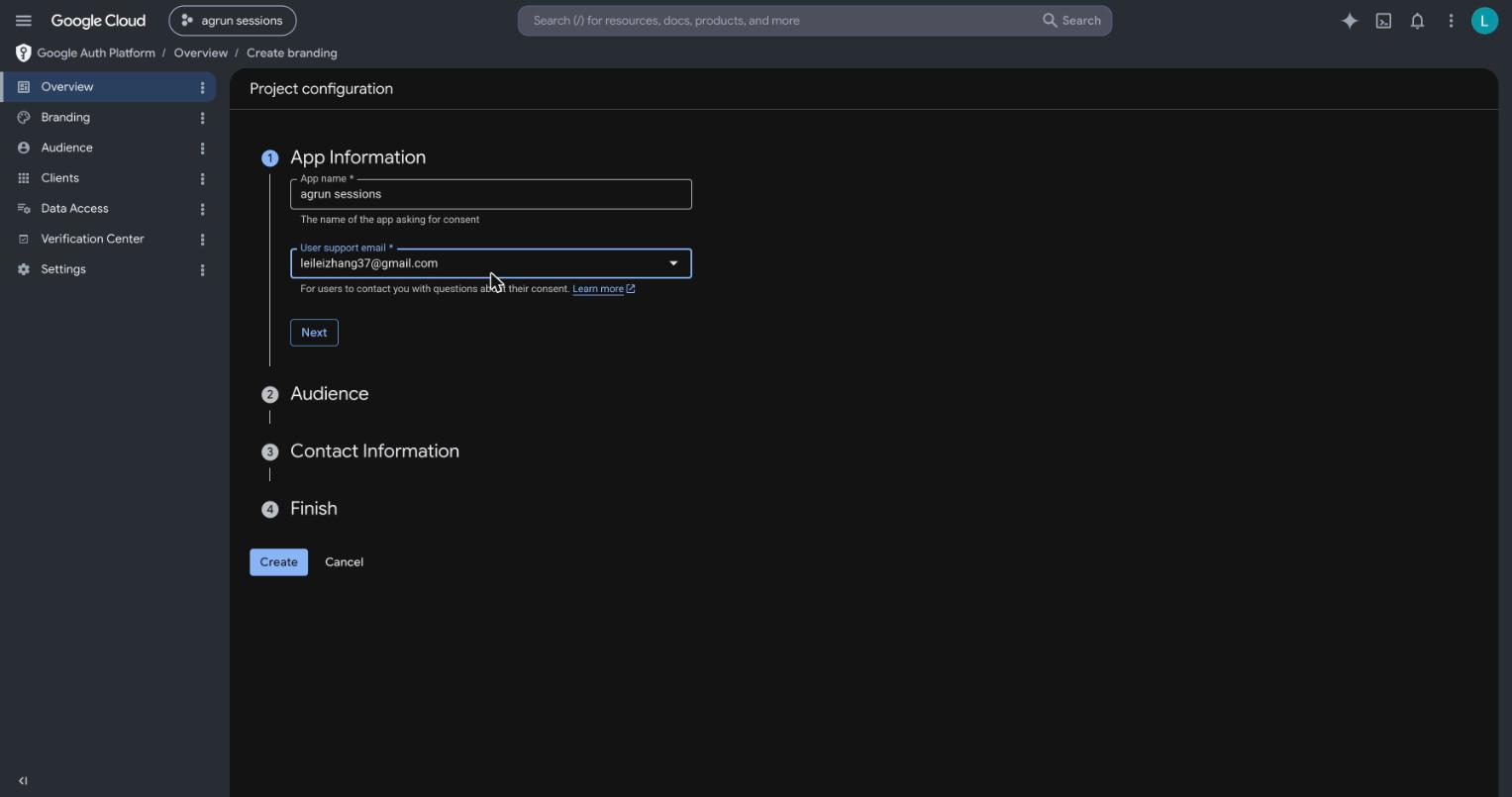
Branding (console, Google Auth Platform → Overview → Get started): app name, support email, audience External, agree to the API user-data policy.
- Test users (Audience page): while the consent screen is in Testing, only listed test users can sign in. Add every account you granted the accessor role to. Testing mode also expires sign-ins after about 7 days; publishing the app removes that if the weekly re-sign-in bothers you.
- Custom OAuth client (Clients page): type Web application. Add this
authorized redirect URI, with your new client’s ID substituted in:
https://iap.googleapis.com/v1/oauth/clientIds/CLIENT_ID:handleRedirect. Note that Google now shows the secret only at creation time, so grab it then. -
Hand the client to IAP, at the project level so every IAP service in the project inherits it:
# iap_settings.yaml
access_settings:
  oauth_settings:
    client_id: CLIENT_ID
    client_secret: CLIENT_SECRET
gcloud iap settings set iap_settings.yaml --project PROJECTDelete the yaml afterwards. IAP stores the secret as a hash.
The change takes effect in seconds: the 502 is gone, and the service URL redirects to a Google sign-in instead. On the phone: open the service URL, pick your Google account, and the terminal loads.
What IAP breaks
One thing stops working: gcloud run services proxy, which is how my
dashboard embeds cloud terminals locally on my laptop. IAP rejects the proxy’s tokens, and
on a no-organization project there’s no clean way around it.
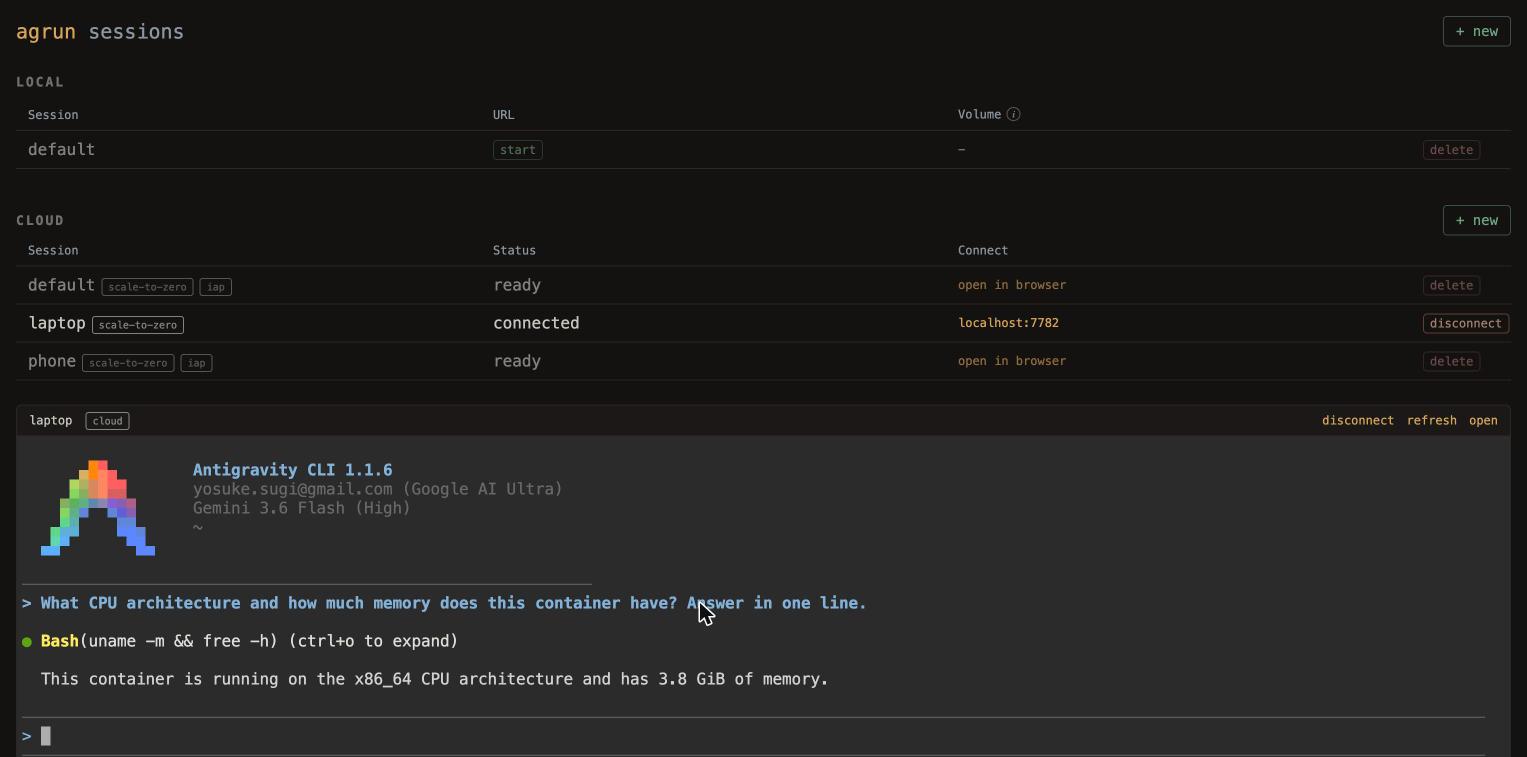
So it’s a per-session choice, and I made it a flag: my deploy script takes
-i to bring a session up with IAP, and the dashboard shows those sessions
as an “open in browser” link instead of an embedded terminal. Default is no
IAP.
Here’s a phone session with IAP next to a laptop session without it. The
IAP one opens in a browser tab; the other one connects through the local
proxy and gets embedded in the dashboard:
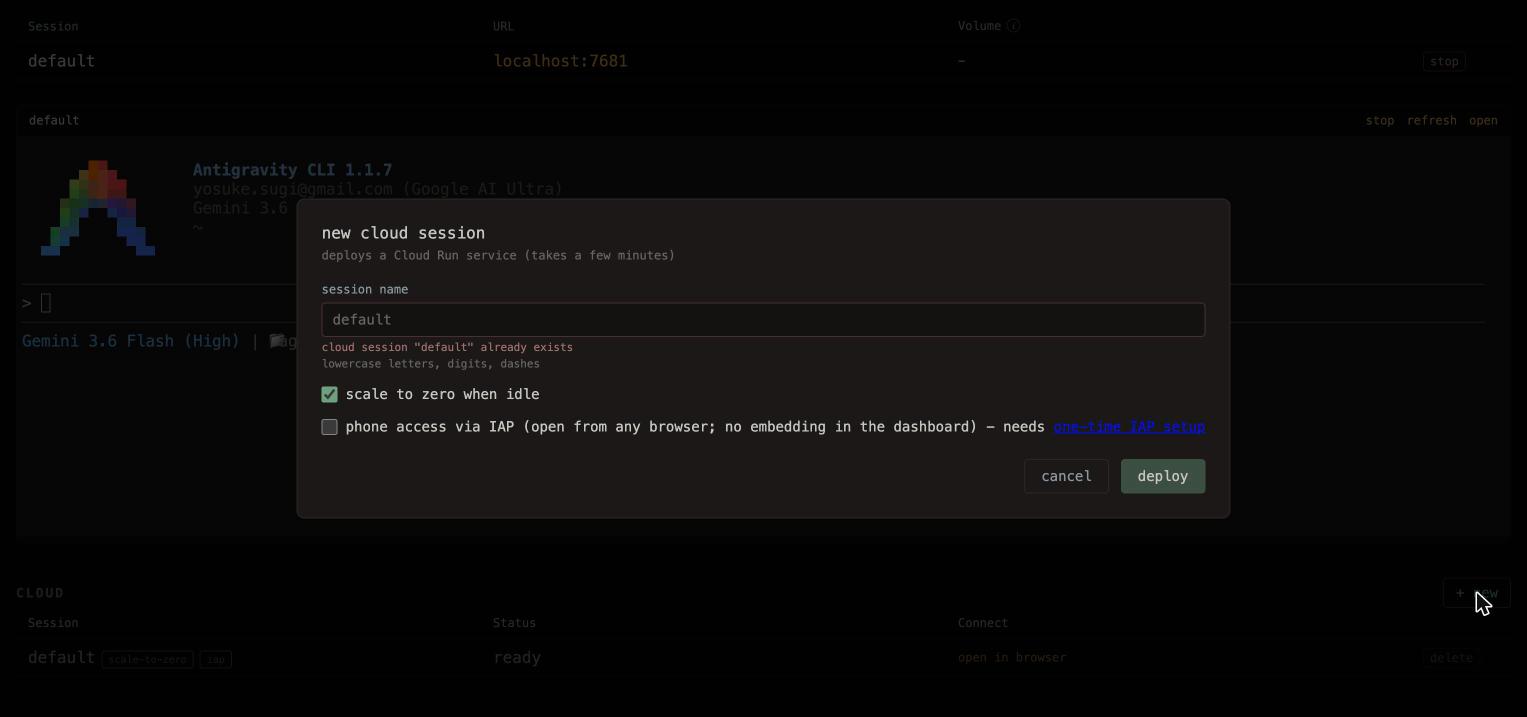
It’s a checkbox when creating a session too, off by default:
Limitations
The basic functionality works: I can open a session from my phone, type a task, and watch it run. A couple of rough edges I’m hoping to address later.
Scrolling isn’t great. It’s a terminal in a browser tab, so scrolling back through output on a touchscreen is fiddlier than it should be.
Font size is the other one. I can’t get it to set properly on the phone. It works in every other browser I tried, so I’m not sure what’s different there yet.